Editor Features
The ScriptO Studio editor is built on CodeMirror 6 and provides a modern code editing experience.
Overview
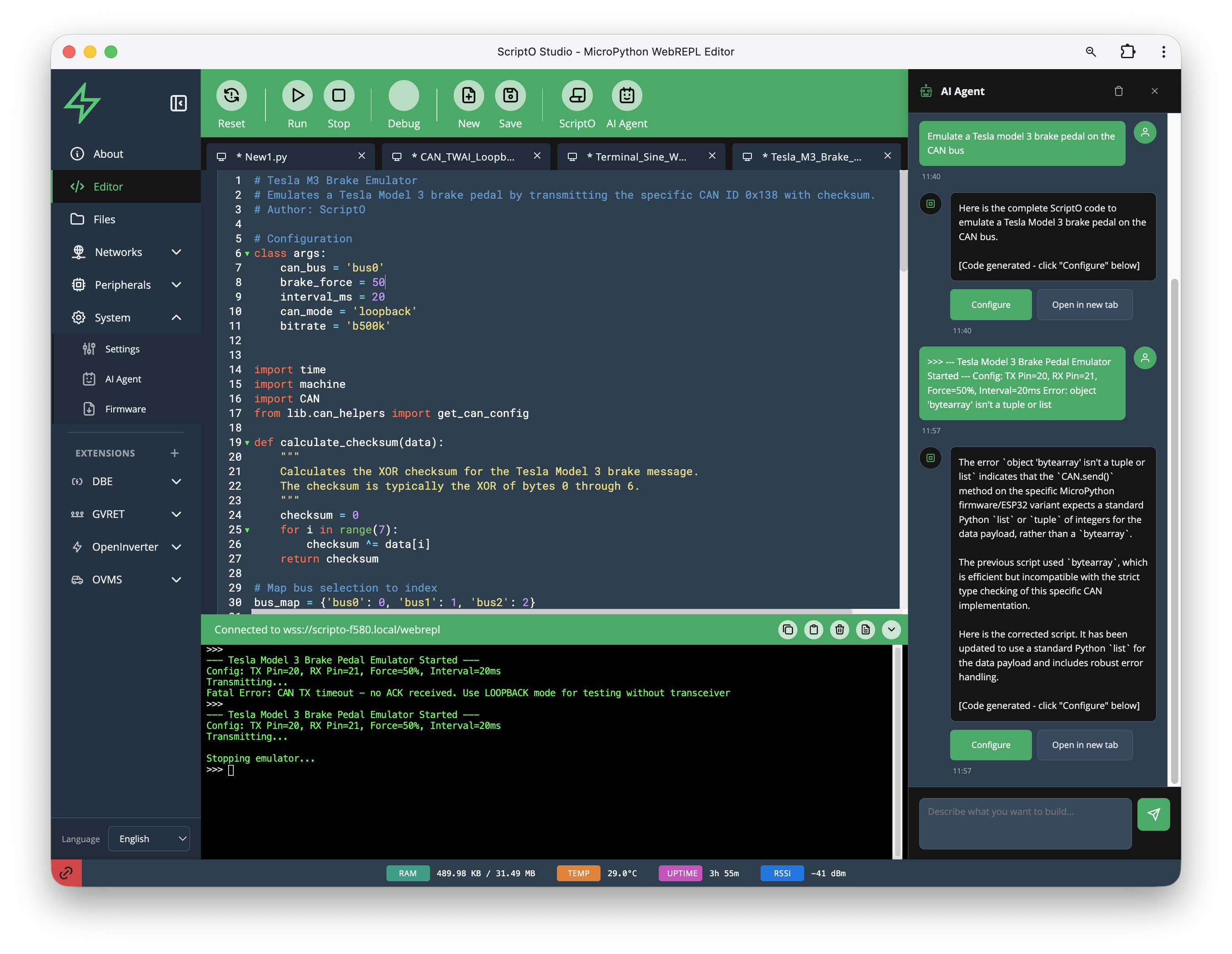
The editor supports: - Python syntax highlighting - Multiple file tabs - Line numbers - Code execution - AI Agent integration
Toolbar
The toolbar provides quick access to common actions:
| Button | Action | Shortcut |
|---|---|---|
| Reset | Soft reset device | - |
| Run | Execute current file | Ctrl+R / Cmd+R |
| Stop | Send interrupt (Ctrl+C) | - |
| Debug | Toggle debug mode | - |
| New | Create new file | Ctrl+N / Cmd+N |
| Save | Save current file | Ctrl+S / Cmd+S |
| ScriptO | Open ScriptO browser | - |
| AI Agent | Toggle AI Agent panel | - |
Tabs
Multiple files can be open simultaneously in tabs:
- Click a tab to switch to that file
- Click the × on a tab to close it
- Modified files show an indicator
- Right-click for tab options
Tab examples shown:
- New1.py
- CAN_TWAI_Loopb...
- Terminal_Sine_W...
- Tesla_M3_Brake_...
Syntax Highlighting
Python code is highlighted with: - Keywords (import, def, class, return) in distinct colors - Strings highlighted - Comments in muted colors - Numbers highlighted - Function calls distinguished
Line Numbers
Line numbers appear on the left margin. Click a line number to: - Select the entire line - Set a cursor position
Code Execution
To run your code:
- Write or edit code in the editor
- Click Run or press Ctrl+R / Cmd+R
- Output appears in the Terminal below
The code is sent to the device and executed immediately. You don't need to save first - the editor content is executed directly.
Terminal Integration
The Terminal panel below the editor shows: - Script output (print statements) - Error messages and tracebacks - REPL prompt for interactive commands
Example output:
=== Tesla Model 3 Brake Pedal Emulator Started ===
Config: TX Pin(5), RX Pin(4), ForceLevel=50N, Interval=20ms
Transmitting...

Stopping emulator...
Keyboard Shortcuts
| Shortcut | Action |
|---|---|
| Ctrl+S / Cmd+S | Save file to device |
| Ctrl+R / Cmd+R | Run code |
| Ctrl+N / Cmd+N | New file dialog |
| Ctrl+L / Cmd+L | Clear terminal |
| Ctrl+Shift+C / Cmd+Shift+C | Connect to device |
AI Agent Panel
The AI Agent panel on the right provides: - Natural language code generation - Error explanation - Code suggestions
See Using the Agent for details.
Related
- Writing ScriptOs - Script development
- Terminal & REPL - Interactive programming
- Using the Agent - AI assistance