File Manager
The File Manager lets you browse, edit, and manage files on your pyDirect device.
Opening File Manager
Click Files in the left sidebar to open the File Manager view.
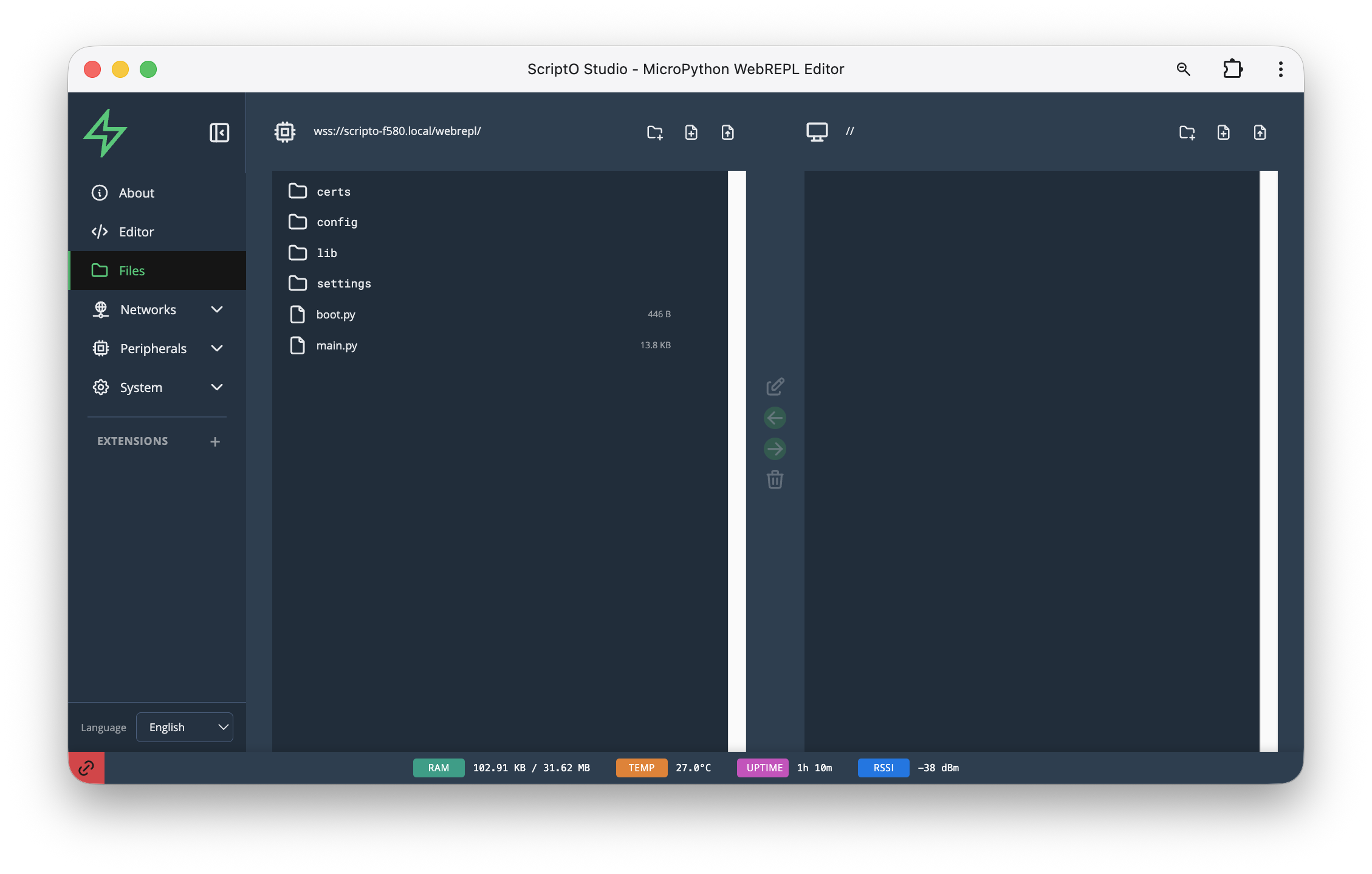
Interface
The File Manager shows a dual-pane view:
| Pane | Purpose |
|---|---|
| Left | Directory listing - folders and files on device |
| Right | File actions and preview |
Device Filesystem
The left pane shows the device's flash filesystem:
/
├── certs/          # SSL certificates
├── config/         # Legacy config files
├── lib/            # Python libraries (installed packages)
├── settings/       # Device settings (JSON files)
├── boot.py         # System boot script
└── main.py         # Your application script
File Information
Each file shows: - Name - Filename - Size - File size in bytes/KB
Folders are indicated with a folder icon.
File Operations
Creating Files
- Click the New File icon (📄) in the toolbar
- Enter a filename (include
.pyextension for Python files) - Click Create
- The empty file opens in the editor
Creating Folders
- Click the New Folder icon (📁) in the toolbar
- Enter a folder name
- Click Create
Opening Files
- Single click a file to select it
- Double click to open it in the editor
Supported file types:
- .py - Python scripts (syntax highlighted)
- .json - Configuration files
- .txt - Text files
- Others - Opened as plain text
Deleting Files
- Select the file or folder
- Click the Delete icon (🗑️) in the right pane
- Confirm deletion
[!WARNING] Deleting
boot.pyor corruptingmain.pymay prevent your device from booting properly.
Uploading Files
- Click the Upload icon in the toolbar
- Select a file from your computer
- File is transferred to the current directory
Downloading Files
- Select a file
- Click the Download icon in the right pane
- File is saved to your computer
Navigating
- Click a folder to enter it
- Click the parent folder icon (↑) to go up one level
- The path bar shows your current location
Status Bar Integration
The status bar at the bottom shows device info:
| Indicator | Meaning |
|---|---|
| RAM | Memory usage (e.g., 182.91 KB / 31.62 MB) |
| TEMP | Chip temperature |
| UPTIME | Time since last boot |
| RSSI | WiFi signal strength |
Refreshing
Click the Refresh icon to reload the file listing from the device.
Related
- Writing ScriptOs - Creating Python scripts
- Editor Features - Editing files
- Settings - Device configuration