Getting Started
Get started with ScriptO Studio.
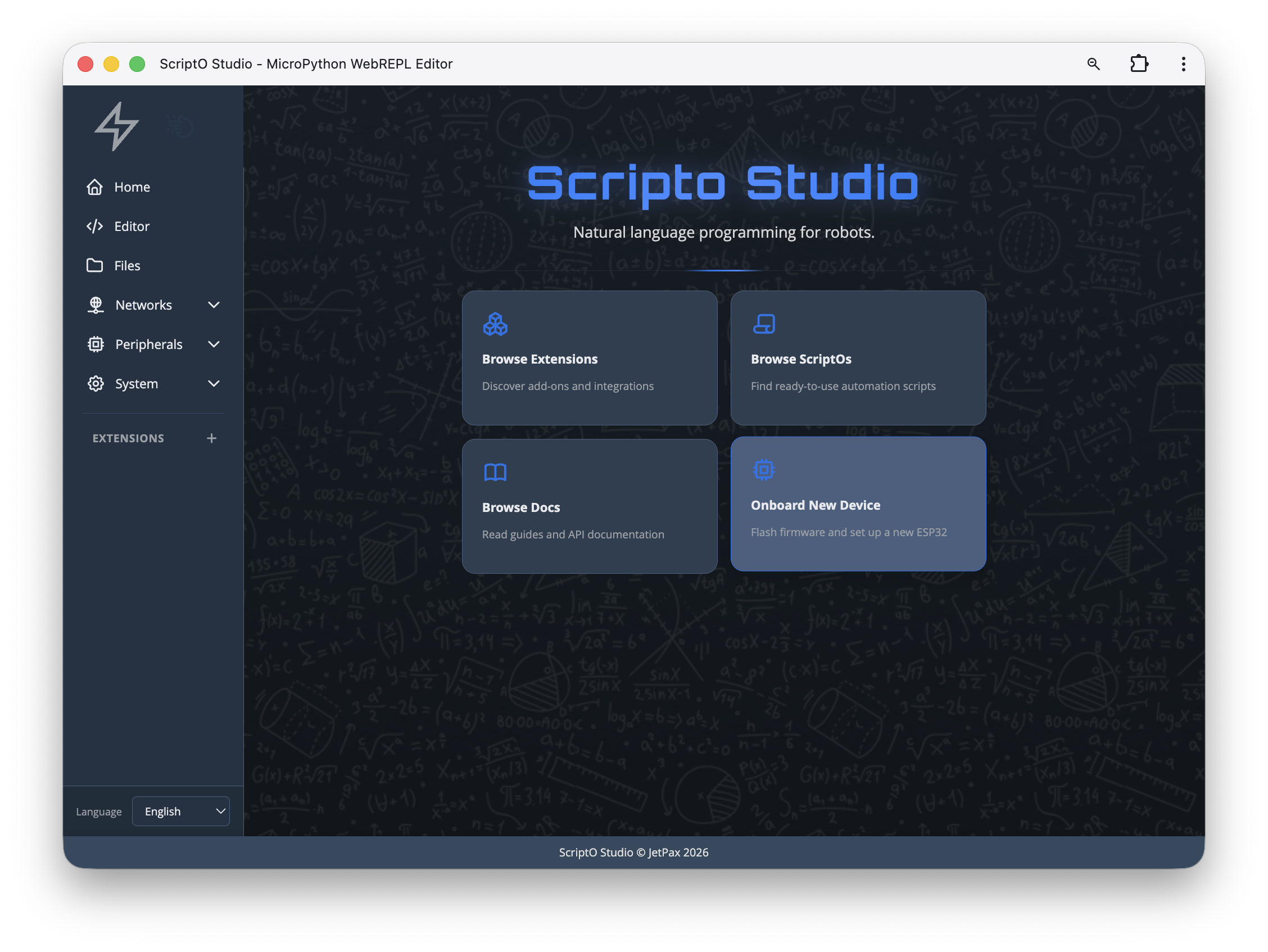
Onboard New Device
ScriptO Studio includes a built-in onboarding tool for all device scenarios. Click Onboard New Device from the home screen, connect your ESP32 via USB, and choose from four options:
| Scenario | Description |
|---|---|
| New Device | Flash fresh firmware onto a blank ESP32 |
| Forgot Credentials | View saved hostname and password |
| Change WiFi | Update network settings on existing device |
| Re-provision | Generate new certificates for HTTPS |
New Device Setup
If you have a brand new ESP32 chip without firmware:
- Go to scriptostudio.com
- Click Onboard New Device from the home screen
- Connect your ESP32 via USB
- Click Connect Device
- Select New Device when the chip is detected
- Flash the firmware (automatically selected for your chip)
- Configure WiFi when the network modal appears
- Select your network from the list (shows signal strength in dBm)
- Enter the WiFi password
- Device connects and saves settings
- You're returned to the scenarios screen
- Select Re-provision Device to generate certificates
- Certificate is generated and installed
- Device resets and connects to WiFi
- Accept the security warning modal and click to open device
- Accept the browser security warning (click Advanced → Proceed)
- Set an access password on the device's web interface
- You'll be redirected to ScriptO Studio
- When ScriptO Studio prompts for connection, use the same password you set in step 11
[!IMPORTANT] The password you set during provisioning is used both for the device's local web interface AND for ScriptO Studio connections. Remember this password!
Existing Device
If you already have a device running pyDirect enabled firmware:
- Go to scriptostudio.com
- Click Connect
- Enter your device's IP address or hostname (e.g.
pybot-xxxx.local) - Enter the access password (set during initial provisioning)
- Click Connect
Forgot Credentials
If you can't remember your device's hostname or password:
- Go to scriptostudio.com
- Click Onboard New Device
- Connect via USB and click Connect Device
- Select Forgot Credentials
- Your device's hostname, password, and WiFi SSID are displayed
Change WiFi
To update network settings on an existing device:
- Go to scriptostudio.com
- Click Onboard New Device
- Connect via USB and click Connect Device
- Select Change WiFi
- A modal shows available networks with signal strength (dBm)
- Select your network and enter the WiFi password
- Device connects and you're returned to scenarios
[!NOTE] Change WiFi only updates network settings. If you need new HTTPS certificates, select Re-provision Device afterward.
Re-provision
To generate new HTTPS certificates:
- Go to scriptostudio.com
- Click Onboard New Device
- Connect via USB and click Connect Device
- Select Re-provision Device
- New certificate is generated and installed
- Device resets and connects to WiFi
- A modal explains the security warning you'll see
- Click Connect to [hostname] to open device in new tab
- Accept the browser security warning
- Set a new password on the device's web interface
Connection Requirements
- Browser: Chrome, Edge, or Opera (WebSerial/WebRTC support required)
- Device: ESP32-S3 or ESP32-P4 with pyDirect enabled firmware
- Network: Device and browser on same network for ScriptO Studio
Accepting the Security Certificate
Devices use HTTPS with a self-signed certificate generated during setup. When you first connect:
- Browser shows "Your connection is not private" warning
- Click Advanced (or "Show Details" on Safari)
- Click Proceed to [device-hostname] (or "visit this website")
- The certificate is now trusted for this device
This only needs to be done once per device per browser.
Next Steps
- First ScriptO - Run your first script
- IDE Overview - Learn the interface
- Troubleshooting Connection - If you have issues
Troubleshooting
Can't connect via USB?
- Check USB cable supports data (not charge-only)
- Install USB drivers if needed (CP210x or CH340)
- Put device in boot mode (hold BOOT, press RESET, release BOOT)
Can't connect from scriptostudio.com?
- Verify device is powered and on the network
- Check the IP address is correct
- Make sure you're using the password set during provisioning
- Accept the self-signed certificate warning first
See Troubleshooting Connection for more help.